2010-11-01

SWFOX - "Creating database abstraction classes" session - by Steve Ellenoff

"imagine if your database application could switch from using foxpro tables, to microsoft sql server, mysql, or to postgresql, by simply changing one line in a configuration file? imagine further if this change could occur programmatically at run time, without having to write different code to handle each different back-end separately?"


the teaser text above drove me directly to steve ellenoff's session - creating database abstraction classes in vfp: switch your back-end with ease. my experience with databases is is really restrict, and i wanted to hear from an expert about the best techniques to work in different scenarios.


steve showed how he created his "data related abstraction class" - dac, that allows his application to switch from:


  • foxpro data to any remote sql server back-end easily.
  • any remote sql server back-end to foxpro data easily.
  • any remote sql server back-end to any other remote sql server easily.

the application could make this switch at development time or run time, even programmatically, without:


  • having to re-write the application or change any source code.


  • having to code the specifics of each back-end into the application.


  • the application should be able to support multiple back-ends all at the same time, even allowing the same exact form to work with different back-ends at the same time.

that's pretty cool! he showed us how these classes can create automatically the "select" statements to access vfp, sql server, mysql or postgree data automatically. it was really very good to see step by step how these classes do the job.


of course there are lots of differences between the databases, the field types, the access, the instructions, the language, etc. really impressive to see how he made something really complicated from my point of view to look so accessible. he provided his classes and many samples for me to start with, all super well documented in his 86 pages whitepaper! below is a diagram taken from the whitepaper that summarizes all of that:


thanks a lot steve, your session was great, and very helpful.

2010-10-27

SWFOX - "PEM Editor" session - by Cathy Pountney


the first session that i attended in the conference was cathy pountney's pem editor: an absolute must have in your development toolkit.


i was really very curious to attend this session for some reasons:


i've been following closely the development of this fantastic tool that is pem editor. i started using doug hennig's "add property" and "add method" replacements since i got my vfp9, and also tried the first version of the "properties and methods dialog replacement" from marcia akins. if you look at the current version of the pem editor, you'll see that it kept almost nothing from the first version. for sure the work from doug and marcia was essential for what we have today in the pem editor.


jim's work on this tool is frenetic, crazy, insane. sometimes he delivers 10 versions of that tool on the same day. he sends many emails, bringing tons of ideas and discussions... man, sometimes for me that's impossible to follow his thoughts :-). he's always adding lots of new possibilities to this fantastic tool. another point is that he is always open to new suggestions, and never refused a challenge.  lucky me to have him as a friend, and the whole community to receive pem editor as a must-have tool for free, and in constant development.


that said, i confess that although being at the email list from jim, that he uses to discuss his tool, i didn't know more than 30% of what it was capable to do and ease my life. so, definitely, the main reason to attend to that session was to better know about the tool;


and secondly, i was excited to attend to a session from cathy pountney. i like a reports a lot, and her inumerous articles, books and blogs have been my reference for years. i didn't find anything that i wanted to do with a report that cathy hasn't shown yet. i'm a very big fan of her work.


and she didn't disappoint me. she did very well, showing the most important features of peme. most of all i didn't know. some others when i heared about i thought i would never use, but seeing cathy bringing those features and showing cool ways to use them, i was completely rendered. i was so glad to have attended to this session, because i feel that i would have never managed to know all the features she presented.


if you would expect me to tell you about the features of pem editor, i'm sorry to disapoint you, because i can't. there are endless utilities, impossible to list them. i just can tell you that i use it all the time ! more info at the links below:


related links:


pem editor at vfpx


pem editor blog  new !


2010-10-26

SWFOX - The KeyNote session

so finally, at thursday night, the conference would officially begin !


that was the first moment when i had the oportunity to meet all the participants together. it was really nice finally meeting all mu gurus and friends from the fox community with whom i've been exchanging messages in forums and in private for years!


in the first part of the session they provided some important information about how the conference works, etc.


then, it was my priviledge to see the vfpx administrators award going to jim nelson and francis faure for their contributions to the vfp community through their projects on vfpx, the pem editor and the vfp9 help file. both projects are essential, i use them all the time! specially for the case of jim nelson, i was truly pleased to see his work being recognized. thanks to vfpx, i had the oportunity to know jim. since the first steps of foxcharts, jim took an important part, providing lots of suggestions, fixes, introducing new features, and even creating a separate tool, to help people to use foxcharts with simplicity. foxcharts was too small for him, and he needed to fly by himself. and fortunately i had the oportunity to follow his steps from the beginning developing the fantastic tool that is pem editor. having the oportunity to meet jim in person was one of the highlights of the whole conference.


next, me and bernard were introduced to the audience as the 2010 ceil silver ambassadors. thanks a lot to all people who contributed to this fund, and invited me. it was a great priviledge and honor to be there with you. i have no words to express how happy i am for having the oportunity to attend swfox !


then, finally the pink panther, craig boyd came to the scene, whith a very funny and energetic speech, that you'd better see by yourself: http://www.ustream.tv/channel/swfoxtv


apart from that some prizes were offered to some of the attendants, and we all left the main room very excited and enthusiasted for the great conference that had just begun ! most people stayed at the corridors, at the bar and pool talking. for me, it was time to sleep, after 2 long flights.

2010-10-24

SWFOX - Preparing for the conference

it was with great surprise that in last july i received an invitation from tamar, rick and doug to participate in the swfox conference this year, as ceil silver ambassador. i was really not expecting to be invited again ( i could not attend last year).


as i told the organizers, i truly don't know what they've seen in me, but i apreciate that ! of course i couldn't miss this time. i've been hearing and reading so many good things about that event, that i had to see and feel it by myself.


since the moment when i accepted the invitation, i started receiving many emails from them, providing all types of informations about the conference. the location, hotel, airport, the sessions, the authors, even the weather ! when we started to get close to the week of the conference, the messages became more frequent. always with relevant information, specially for a newcommer like me.


i started feeling excited like if the conference was already starting, for sure that was a great warmup ! these guys are unbelievably organized. two weeks before the conference almost all the materials from the sessions were available at an ftp server, for us to download.


it was sooooo nice to have access to these materials, i printed the ones that most interested me, and now you know that i had lots of things to read during my 18 hours since i left home and arrived in arizona. the quality of the materials is really impressive. these articles are super detailed and provided me an excellent oportunity to get a first contact with the subjects, specially for a foreigner.


the flights were tiring, but without surprises, what is really good :-d. when i finally reached phoenix, on thursday at 11, what a vip reception ! therese schummer was waiting for me and bernard at the baggage claim at the airport to take us directly to gilbert, at the san tan elegante conference center. therese was very kind, and provided the first information about the conference, etc... it was really cool to meet bernard at the airport. that's so crazy, we've been exchanging lots of messages in foxite and in private, and i though i would never have the pleasure to meet him in person.


having reached the hotel, me and bernard finally had the oportunity to meet tamar, doug and rick at the conference. these guys were so warm and hepful! from them we received lots of materials about the conference: a cd, some great books, and a conference guide - not just a simple guide, but a book ! with several information about everything ! i got really impressed, again and again... at that moment, the pre-conference was already running, and we took some time to rest from the flights, and waited for the beginning of the conference, at the key note session, later at night.

2010-09-29

FoxyPreviewer features - SETTINGS DIALOG

The FoxyPreviewer settings dialog


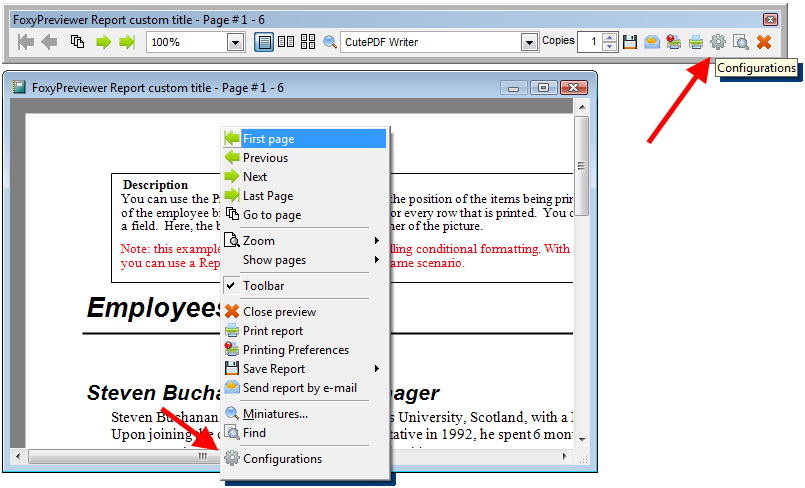
An additional button in the print preview toolbar and in the context menu (via right clicking at the report preview canvas) calls the "settings definitions" dialog, that allows users to configure interactively 90% of the features of Foxypreviewer.

That means, that every user can determine lots of things related to his report preview definitions.

Users may choose very easilly how the toolbar will appear in the next section, what buttons will be visible, the buttons size, what output types will be available. From the toolbar or the context menu, click at this button, to open the dialog.


This dialog contains a pageframe with 7 different pages, as described below:


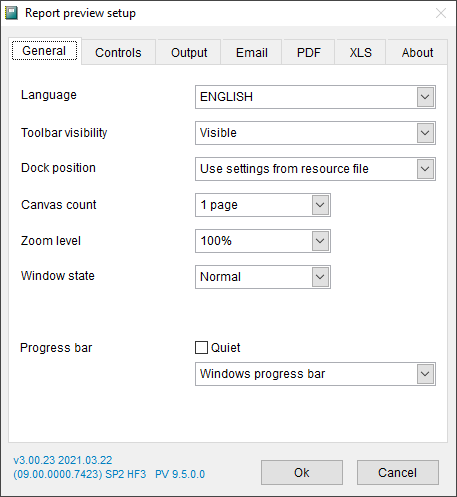
1 - General page


  • language - the combobox lets you change all your report dialogs, tooltips, and captions between 22 languages available: English, Portuguese, Spanish, French, German, Greek, Turkish, Italian, Polish, Indonesian, Czech, Persian, Swahili, Hebrew, Arabic, Indonesian, Russian, Dutch, Chinese, Bulgarian, Hungarian, Serbian, among others. At the source folder of Foxypreviewer you'll find the FOXYPREVIEWER_LOCS.DBF table. Please update it from times to times, because every time that a new feature is added, some new strings are included there. Of course, this permits to you to customize some of the texts showns in the dialogs.
  • toolbar visibility - here you define if in the next report preview session the toolbar will be visible, invisible, or if it will follow the resource file settings
  • dock position - determines how the toolbar will appear in the next session, undocked or docked. the combo allows you define the dock position as well.
  • canvas count - determines how many pages will be shown in the preview. choose between 1, 2 or 4 pages at the same time
  • zoom level - determines the zoom level that will be used in the next session
  • window state - choose between, normal, minimized or maximized report preview window
  • progressbar


    • quiet mode - determines if the progressbar will appear during the report generation and during the output generation. if you include the "nodialog" clause in your report, this setting will be ignored
    • progressbar type - choose between the default progressbar (not beautiful at all) or the coolest windows compatible progressbar, compatible with all windows versions, a courtesy of Carlos Alloatti and Dorin Vasilescu. Picture below:
  • version - at the bottom-left part of the dialog form you can see easilly some details of the current version used. Please report this version information if you suspect a bug, or need some assistance

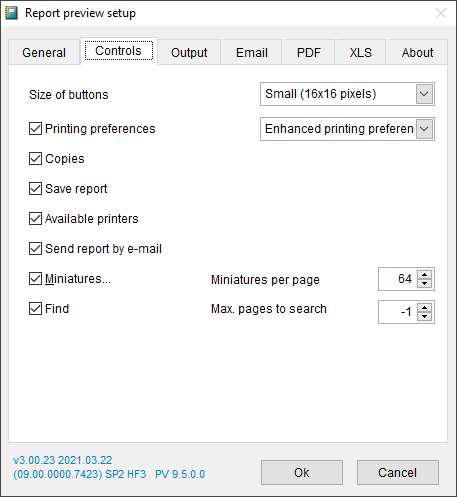
2 - Controls page


  • size of buttons - Determines the size of the buttons to be used - 16x16 or 32x32. Internally, foxypreviewer stores 2 button size options. Users may choose between these options. If you want to use your own buttons, go to the image folder, and replace with your own buttons. Make sure to use the same file names. after recompiling, your FoxyPreviewer.app version will show your pictures. Below you can see the toolbar in the big size (32x32)
  • printing preferences button - determines the visibility of the "Printing Preferences" button in the toolbar and context menu


    • preferences options: "Global printer prompt options" - shows the VFP9 default printer prompt dialog. This is the deprecated, but still flexible dialog; it allows your users to determine the printer for the output, change preferences, access an uninstalled printer from the LAN, etc. The disadvantage is that if the user clicks on the "cancel" button, the report preview will be closed.
    • preferences options: "Setup Property Sheet for the current printer" - shows the preferences dialog for the current printer. This will not allow you to switch to another printer, but if the user clicks on "Cancel", the preview will be restored.
    • preferences options: "Enhanced Printing Preferences dialog" - shows the new and enhanced Printing Preferences dialog of FoxyPreviewer v3.0. This brings a new and super flexible printing dialog form, bringing options available in the actual printing preview dialogs from other platforms.


  • copies - determines if the copies spinner will be shown in the toolbar. This control will allow your users to change the quantity of copies for the current report session.
  • save report - determines if the "save" button will be available in the toolbar and context menu. See in the next section how to determine which output file options you can make available.
  • available printers - determines if a combobox with all the available printers will be visible. This control will allow users to switch the printer output during the preview.
  • send report by e-mail - determines if the e-mail button will be visible. See in the 4th page information ( in the "e-mail" tab ) more instructions of usage
  • miniatures - determines if the miniatures preview form button will be visible in the preview toolbar and context menu
  • miniatures per page - determines the maximum quantity of miniatures that will be shown per page when you choose miniatures preview mode
  • find - determines if the search button will be available in the preview toolbar and context menu

    • max pages to search - determines the quantity of pages that the search engine will store information. When you have a really big report, of more than 200 pages, users will notice a very important performance difference, because during the report generation it will be saving information of all the fields from the report. Set the numeric value of "-1" to tell Foxypreviewer to perform the searches in all pages


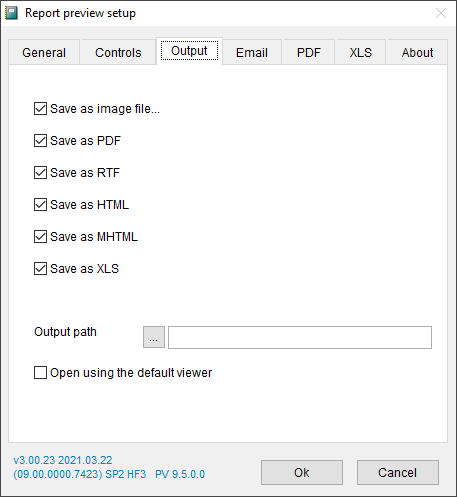
3 - Output page


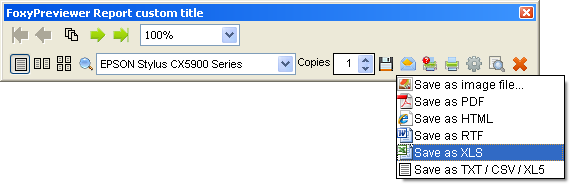
Here you can define what output options you'll have available in the "save report" menu, like in the picture below:


  • save as image file - determines if the save to image option will be available in the output options menu
  • save as PDF
  • save as HTML, MHTML
  • save as RTF
  • save as XLS
  • save as TXT / CSV / XL5
  • output path - determine the path / directory where the output files will be saved


4 - E-mail page


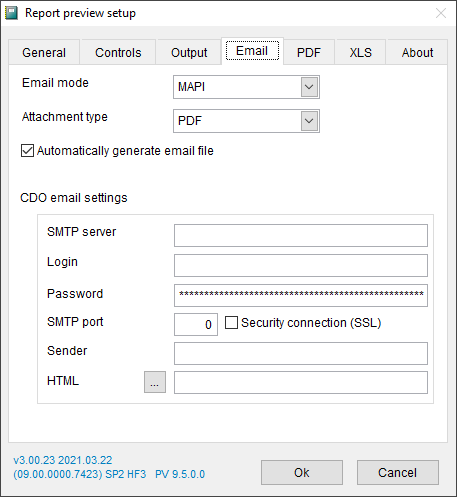
In this page you have several emailing options. Choose the one that you find the most appropriate for your case, OS, etc.


  • email mode - choose between MAPI, CDO, or your custom procedure.

    • MAPI - will fire your default MAPI compatible app, like Outlook Express, Office Outlook, Windows Live Mail, showing your report as an attachment. All you have to do is click on the "send" button. this does not always work. Please advice your users to make some tests before using this option.

    • CDO - uses the CDO2000 component included in windows 2000 and later. It allows you to send emails using an SMTP server. All settings must be accurate in order to make this work. For example, below is the configuration for a Hotmail or Live account to send emails. You may check also at Sergey Berezniker's blog for more information on how to send using MSN, Yahoo or Gmail email messages using CDO: http://www.berezniker.com/category/topic/email
    • custom procedure - You can use your own procedure to send the current report. Use Foxypreviewer property "cEmailPrg", and fill it with the name of the prg responsible for sending emails. This PRG receives as a parameter the file name of the file created that you will send as attachment. Have a look at the samples provided, the file MYSENDMAIL.PRG shows how you would need to make your custom procedure.
  • Attachment Type: determines the file type that will be used to convert the report to be sent by e-mail. Default is PDF, among XLS, RTF, HTML, TIF or PDF.
  • Automatically generate e-mail file: when not checked, FoxyPreviewer will ask the user first for the attachment type
  • CDO e-mail settings: Users can add their own settings for sending their e-mails. The 'HTML' textbox lets you store a simple HTML file, that will contain some texts to be inserted in your e-mails, such as a signature.


Foxypreviewer general info
Foxypreviewer documentation
FoxyPreviewer FAQS
Foxypreviewer downloads

2009-10-26

Extended MessageBox function - Updated ! - change button captions, main icon, disable buttons

Updated version - Now allowing changing icons and disabling buttons

lnOption = MsgboxEx( ;
   "You have entered a wrong password for 5 times.
" + chr(13) + ;
   "For security reasons this login was suspended.", ; && main message
   0, ; && default icon info
   "Password incorrect", ; && title bar caption
   "\&Retry,&Exit,Get &new pwd", ; && new button captions
   "41.ico") && icon file
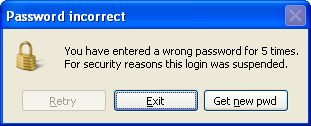


This is a simple function that allows us to customize the captions of buttons of the messagebox() dialog window, like in the image shown above.

Thanks to Mike gagnon and Anatolyi Mogylevetz, here's an updated version of the version that allows to change the icon and also to disable the buttons.

Basically I followed Anatolyi's instructions to allow disabling the buttons. Changing the dialog icon was also very simple, with a short research in his great site - Using Win32 functions in Visual Foxpro .

I just adapted a sample provided by Craig Boyd in his blog article - Bindevent on steroids using the VFPEX.FLL that he created and kindly provided in that article. Please refer to the original article for more details.

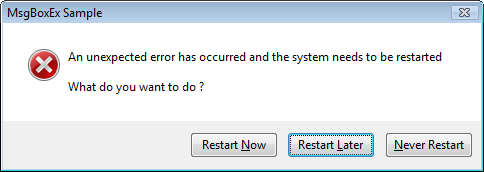
I called it MSGBOXEX.PRG, and it can be used very simply, to obtain the result below - notice the 4th parameter, that contains the captions of the buttons to be used, delimited by a comma:

lnOption = MsgboxEx(;
   "An unexpected error has occurred and the system needs to be restarted." + ;
   chr(13) + chr(13) + "What do you want to do ?", ;
   "X", ;
   "MsgboxEx sample", ;
   "Restart &Now,Restart &later,&Never restart")


lnOption = MsgboxEx( ;
   "Could not find the file 'Import.csv' in the selected folder.", ;
   0, ;
   "File not found", ;
   "&Abort,\&Retry,Change folder", ;
   "17.ico")


function: MsgboxEx.prg

description: Modifies the captions of messagebox buttons

parameters:

  • tcCaption - the text that appears in the dialog box.

  • tnIcon - the icon sign - can be numeric, using the default messagebox() icon values or character:
       - stop sign: 16 or "x"
       - question mark: 32 or "?"
       - exclamation point: 48 or "!"
       - information: 64 or "i"

  • tcTitle - the text that appears in the title bar of the dialog box

  • tcButtons - the captions to be used in the buttons using the comma "," delimiter
    use the "&" character to determine the hotkeys to be used - eg: "option&1,option&2,option&3" - the "\" backslash can be used to show the current button disabled.

  • tcIconFile - (optional) the icon image file


returns: The index number according to the option selected - eg. returns the value 3 if the 3rd button was selected.


pros:
  • use the same dialog interface from the messagebox() function, allowing us to easilly customize existing dialog boxes.
  • almost the same structure of parameters of the original function
  • behaves correctly in all operating systems.
  • allows hotkeys (thanks to thiago takehana for reminding about this possibility)

cons:
  • up to 3 buttons are allowed
  • size of buttons is limited to the original messagebox() buttons size, not allowing big sized buttons.


lparameters tccaption, tnicon, tctitle, tcbuttons, tciconfile
* msgboxex.prg
* description: modifies the captions of messagebox buttons
* prerequisites: needs vfpex.fll by craigboyd
* http://www.sweetpotatosoftware.com/spsblog/ct.ashx?id=f7644db8-b155-4d43-8216-4cfde233edb7&url=http%3a%2f%2fwww.sweetpotatosoftware.com%2ffiles%2fvfpex.zip
* more info about vfpex.fll
* http://www.sweetpotatosoftware.com/spsblog/2005/08/07/bindeventonsteroids.aspx
* parameters:
* tccaption - the text that appears in the dialog box.
* tnicon - the icon sign
* tctitle - the text that appears in the title bar of the dialog box
* tcbuttons - the captions to be used in the buttons using the comma "," delimiter
* use the "&" character to determine the hotkeys to be used - eg: "option&1,option&2,option&3"
* use a "\" to disable the button
* tciconfile - the icon file to replace the default from messagebox()
* returns: the index number according to the option selected - eg. returns the value 3 if the 3rd button was selected.
* sample:
* =msgboxex("this is a common text", "!", "window title", "option1,option2,option3")
if vartype(tntimeout) = "C" and (pcount() = 4)
   tcbuttons = tntimeout
   tntimeout = 0
endif

private pnbuttoncnt, pcbuttons, pnbutttype, pciconfile, phicon
pciconfile = iif(empty(tciconfile),"", tciconfile)
pnbuttoncnt = getwordcount(tcbuttons, ",")
pcbuttons = tcbuttons
*!* stop 16
*!* question 32
*!* exclamation 48
*!* info 64
if vartype(tnicon) = "c"
   tnicon = upper(tnicon)
   do case
   case tnicon = "X"
      tnicon = 16
   case tnicon = "?"
      tnicon = 32
   case tnicon = "!"
      tnicon = 48
   case tnicon = "I"
      tnicon = 64
   otherwise
      tnicon = 0
   endcase
endif

* check if an icon will be shown
* if an icon file was passed, we need to ensure that messagebox() will
* show an icon, that will be changed further.

#define image_bitmap 0
#define image_icon 1
#define lr_loadfromfile 0x0010
#define lr_defaultsize 0x0040
phicon = 0
if not empty(pciconfile) and ;
   (not (bittest(tnicon, 4) or bittest(tnicon, 5) or bittest(tnicon, 6)))
   tnicon = tnicon + 16
   phicon = xmbloadimage(0, fullpath(pciconfile), image_icon,;
0,0, lr_loadfromfile + lr_defaultsize)
endif


* windows hook constants
#define wh_cbt 5

* set library so bindeventex and unbindeventex can be used in vfp
local lcoldsetlib
lcoldsetlib = set("library")
set library to (locfile("vfpex.fll"))
bindeventex('wineventhandler()', wh_cbt) && setwindowshookex

* this messagebox will be modified before it is shown
local lnoption, lnindex
do case
case pnbuttoncnt = 1
   pnbutttype = 0 && ok
case pnbuttoncnt = 2
   pnbutttype = 4 && yes / no
case pnbuttoncnt = 3
   pnbutttype = 2 && abort / retry / ignore
otherwise
endcase

lnoption = messagebox(tccaption, tnicon + pnbutttype, tctitle)

local lnoffset
lnoffset = icase(pnbuttoncnt = 3, 2, pnbuttoncnt = 2, 5 , 0)
lnindex = lnoption - lnoffset

if phicon <> 0
   =xmbdeleteobject(phicon) && clear icon handle
endif 

if not empty(lcoldsetlib)
   set library to (lcoldsetlib)
endif
return lnindex


procedure wineventhandler
#define dlg_ctrlid_icon 0x0014
#define stm_seticon 0x0170
#define stm_setimage 0x0172
if ncode == 5
   if not empty(phicon)
      * changing the dialog icon
      local lhiconwindow
      lhiconwindow = xmbgetdlgitem(wparam, dlg_ctrlid_icon)
      if lhiconwindow <> 0
         if phicon <> 0
            =xmbsendmessage(lhiconwindow, stm_seticon, phicon, 0)
         endif
      endif
   endif

   * change button attributes
   local n, lnoffset, lccaption
   lnoffset = icase(pnbuttoncnt = 3, 2, pnbuttoncnt = 2, 5 , 0)
   for n = 1 to pnbuttoncnt
      lccaption = getwordnum(pcbuttons, n, ",")
      * disable current button
      if left(lccaption, 1) = "\"
         lccaption = substr(lccaption, 2) && get the rest of the string
         local lnbtnhwnd
         lnbtnhwnd = xmbgetdlgitem(wparam, lnoffset + n)
         =xmbenablewindow(lnbtnhwnd, 0)
      endif

      * change the caption
      =xmbsetdlgitemtext(wparam, lnoffset + n, lccaption)
   endfor

   =xmbcallnexthookex(hhook, ncode, wparam, lparam) && all 4 variables exist
   unbindeventex()
else
   =xmbcallnexthookex(hhook, ncode, wparam, lparam) && all 4 variables created by fll
endif

release ncode, wparam, lparam, hhook
endproc


*********************************************************************
function xmbsetdlgitemtext(hdlg, niddlgitem, lpstring)
*********************************************************************
declare integer SetDlgItemText in user32 as xmbsetdlgitemtext ;
   long hdlg,;
   long niddlgitem,;
   string lpstring
return xmbsetdlgitemtext(hdlg, niddlgitem, lpstring)
endfunc

*********************************************************************
function xmbcallnexthookex(hhook, ncode, wparam, lparam)
*********************************************************************
declare long CallNextHookEx in user32 as xmbcallnexthookex ;
   long hhook, long ncode, long wparam, long lparam
return xmbcallnexthookex(hhook, ncode, wparam, lparam)
endfunc

*********************************************************************
function xmbgetdlgitem(hdlg, niddlgitem)
*********************************************************************
* hdlg [in] handle to the dialog box that contains the control.
* niddlgitem [in] specifies the identifier of the control to be retrieved.
* http://msdn.microsoft.com/en-us/library/ms645481(vs.85).aspx
declare integer GetDlgItem in user32 as xmbgetdlgitem ;
   long hdlg,;
   long niddlgitem
return xmbgetdlgitem(hdlg, niddlgitem)
endfunc

*********************************************************************
function xmbenablewindow(hwnd, fenable)
*********************************************************************
declare integer EnableWindow in user32 as xmbenablewindow integer hwnd, integer fenable
return xmbenablewindow(hwnd, fenable)
endfunc

*********************************************************************
function xmbsendmessage(hwindow, msg, wparam, lparam)
*********************************************************************
* http://msdn.microsoft.com/en-us/library/bb760780(vs.85).aspx
* http://www.news2news.com/vfp/?group=-1&function=312
declare integer SendMessage in user32 as xmbsendmessage;
   integer hwindow, integer msg,;
   integer wparam, integer lparam
return xmbsendmessage(hwindow, msg, wparam, lparam)
endfunc

*********************************************************************
function xmbloadimage(hinst, lpszname, utype, cxdesired, cydesired, fuload)
*********************************************************************
declare integer LoadImage in user32 as xmbloadimage;
   integer hinst,;
   string lpszname,;
   integer utype,;
   integer cxdesired,;
   integer cydesired,;
   integer fuload
return xmbloadimage(hinst, lpszname, utype, cxdesired, cydesired, fuload)
endfunc
 

*********************************************************************
function xmbdeleteobject(hobject)
*********************************************************************
declare integer DeleteObject in gdi32 as xmbdeleteobject integer hobject
return xmbdeleteobject(hobject)
endfunc


download the vfpex.fll here, created by craig boyd, directly from the sps weblog.
download the MessageboxEx function  

History:

2009-10-19 original version (change captions)
2009-10-23 updated, allowing icon change and disabling buttons


2009-10-22

A GdiPlusX analog clock

After I posted a Gauge sample with gdiplusx some months ago, Rafael Lippert from Brazil adapted my original code and created this cool analog watch, using GdiplusX and the 'ImageCanvas' class:


Cool isn't it ? it permits many customizations, and you may use it as a sample to learn other GdiplusX techniques.

You may get it directly from Rafael' blog, at: http://rafaellippert.wordpress.com/2011/06/21/a-gdiplusx-analog-clock/

It's worth to spend some time in Rafael's blog and website - www.lipsil.com.br . I'm sure you'll find some really very neat utilities.